


Published: Nov 09, 2026
Customize Your DAM Workflows to Match Your Process
Table of contents
Can a DAM match your existing workflow?
Use customized fields and stages for the views you need
Set your rules for intake through sign-off
Automate repeat work and connect your existing tools
What Air doesn't do for workflow customization
Build on the process you already have with Air
Customizable DAM workflow FAQs
Your team probably already has a process. There's a status list everyone recognizes, a short set of people who sign off, a naming convention that mostly holds, and an agency handoff that lands every quarter whether the tooling is ready or not.
It works well enough. The trouble starts when a new platform asks the team to drop all of that and adopt the vendor's version instead.
Customizable DAM workflows should do the opposite: mirror how your team already works, and live on the assets themselves rather than in a parallel system people forget to update.
This guide covers fields and stages, intake and sign-off, partner and org-level access, and repeat work, plus what Air does and doesn't do.
(For the DAM fundamentals, start with our digital asset management guide for creative teams.)
Can a DAM match your existing workflow?
Yes, if the configuration lives on the asset. In Air, custom fields, stages, approvals, and version history attach to files rather than to tickets, so your process travels with the work instead of being re-entered in a second tool.
That's a different model from the one many teams have lived through. Legacy DAMs often ask you to define a rigid taxonomy and routing rules before launch, then charge you in time and services whenever the business changes. But a DAM with custom workflows built on a visual-first workspace works the other way around: admins create fields from workspace settings and adjust them as campaigns change.
In Air, Boards also help teams with an established structure. A single file can live in several boards at once (campaign, channel, region) without duplicating storage, so your existing organizational logic can be rebuilt as it is.
Then there's adoption. A workflow only works if people actually use the library, and configuration that adds a tagging chore nobody maintains sends designers back to Slack. Good setup removes steps instead.
For example, once Strava's library was easy to search, inbound "do you have something for this?" requests dropped because people started finding assets themselves.
Before you commit to any customizable digital asset management tool, you can pressure-test it with four questions:
Can we rename and reshape metadata fields ourselves, without a services engagement?
Do our stages show up as a working view, or only as a report?
Can external partners participate without taking a seat?
Does it connect to the systems we already run?
The rest of this guide answers those questions using Air as the example. For the broader intake-to-release stages and how they differ from project management, see our page on creative workflow management software.
Use customized fields and stages for the views you need
Most teams' process is really just a metadata schema, a set of stages, and the handful of views people check every day. In Air, those become custom fields, a Kanban board driven by a single-select field, and saved searches.
Custom fields that use your language
Custom fields are how your schema gets onto the work. Air supports four field types:
Single-select for one value per asset, such as status or region
Multi-select for assets that carry several values, such as the social platforms a cut is approved for
Plain text for descriptive data, with hyperlink support
Date for time-based information, such as shoot dates or usage expiry
Every workspace starts with four default fields: status, rating, usage rights, and assignee. Admins can adjust those on any plan, so the values match your team's vocabulary rather than the defaults. An apparel brand, for example, might replace a generic "Approved" value with "Approved – paid social," "Approved – wholesale," and "Needs legal review," so the status itself tells a marketer where an asset can run.
Beautiful Destinations, a travel brand and creative agency, uses custom fields this way when making selects for clients. The team builds a board for the client presentation and uses ratings to mark first-, second-, and third-round picks, all without duplicating the large video files involved. Their selection rounds live on the assets, not in a spreadsheet beside them.
Stackable filters then let marketers combine field values with file type, people, and other attributes to pull exactly what they need, without asking a designer.
View your stages with a Kanban view
A single-select field becomes your Kanban columns. If your stages are “brief, shooting, retouch, in review, approved, and archived” for example, those are the columns, and assets move through them in a view creatives recognize.
In Air, the board reflects field values, so the two stay in sync: drag an asset to a new column and its status changes, with no duplicate tracking to reconcile. If your workspace has more than one single-select field, any of them can drive the board, so the same assets can be grouped by stage for the studio and by usage rights for legal.
As a rule of thumb, keep stages to the five or six that trigger a real decision, rather than importing every sub-step from a project plan.
For a step-by-step walkthrough, see how to manage creative projects with approval statuses, or see how teams customize approval statuses in Air.
Use saved searches so "everything approved" is one click
Saved searches turn recurring questions into permanent views that stay up to date in the workspace sidebar.
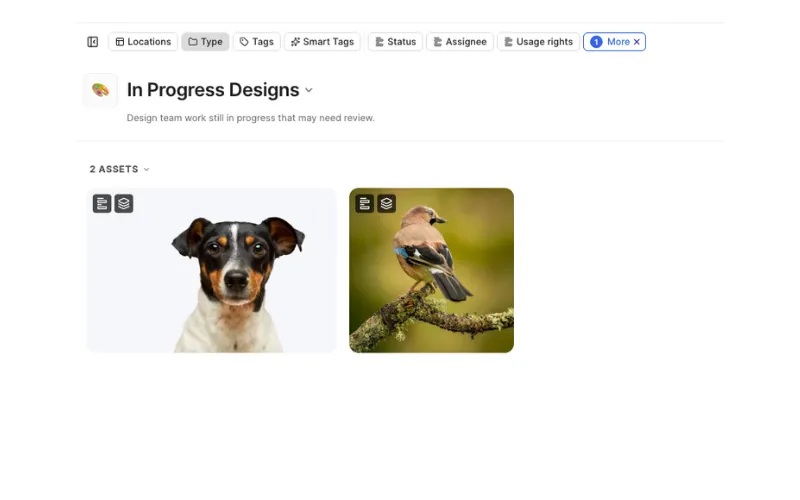 Typical examples:
Everything approved for Q4
Every vertical crop shot this year
Every asset with restricted usage rights
For the marketing lead, this is a self-serve route to approved work that doesn't depend on knowing a filename. And because Air applies smart tags automatically and supports conversational search, these views keep working when someone forgets the naming convention.
Set your rules for intake through sign-off
Handoffs are where most processes break: files arrive without context and approvals happen in a side channel where the decision is separate from the asset.
Make sure assets arrive with the metadata attached
In Air, content collection forms let agencies, freelancers, and field contributors upload straight into a board with no Air account required.
When you build a form, you choose which custom fields appear and mark each one optional or required. If campaign, shoot date, and usage rights are required, contributors can't submit until they're filled in, so a seasonal photo delivery lands in the right board already tagged, instead of arriving as a zip file in an email thread.
Use a sign-off that stays on the file
In Air, approvals run on status values, @mentions, and version stacks. For example: someone uploads a cut, sets the status to "Needs approval," and @mentions the approver, who leaves feedback or changes the status to "Approved." The decision and the person who made it are recorded next to the asset, not in an inbox.
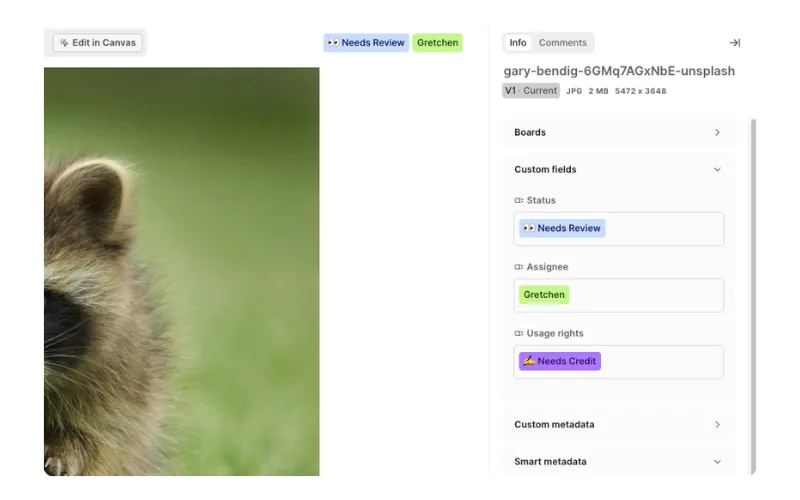 Version stacking then keeps the result clean. New iterations stack on top of the original, so the current approved file is the one everyone sees, while working files and earlier rounds stay underneath it in the same stack with their full history. Reviewers can also pin comments to areas of an image or leave timestamped notes on video, with threads resolving inline.
That preserved history made the difference for Eight Sleep's global team. When a designer in another time zone picks up an animation two weeks later, the context is still on the asset, and onboarding new designers has become frictionless.
For a deeper look at feedback and sign-off, see Air's review and approval workflows, or compare options in our roundup of creative approval software.
Control partner access with the settings you choose
Share links let partners review and pull work without joining your workspace, and you decide what each link allows. Settings include:
Download controls, so reviewers can view without taking files
Passcode protection and expiration dates, available on Business and Enterprise
Email-gating, so you know who opened the link, also on Business and Enterprise
Custom field visibility and editing, so a client can mark their picks or update a status directly on the link
Reviewers who edit custom fields or comment need a free Air account, but don’t need workspace access or a seat. For a more polished handoff, Showcases package boards and assets into a branded page behind a single link.
Use dedicated roles and libraries for larger organizations
If you run multiple brands or regions, Air's Enterprise plan adds structure that keeps them apart:
Custom roles, set up with Air's customer success team
Access-controlled Libraries, segmented by brand or region
SSO via SAML 2.0
A dedicated onboarding manager who helps define roles and workflows
Many teams don't know their ideal structure until they start mapping it. As Beautiful Destinations put it:
"We didn't even know what we needed in terms of structure, and working with the Air team to define those needs couldn't have been easier."
See Air for enterprise brand management for more.
Automate repeat work and connect your existing tools
The most customizable part of a workflow is often the part nobody wants to do twice: batch renaming, resizing for every channel, and routing notifications to the right people. Skills, Air's agent, and integrations take that work on without changing the process underneath.
Save an edit once and run it on every batch
Air Canvas is Air's AI design and editing surface, built to turn one approved design into every variant a campaign needs. Any AI edit in Canvas can be saved as a named, reusable Skill. Type "/" in Canvas to open the Skills library, then run a Skill on a single asset or on a multi-selected batch.
A brand team might save a Skill that applies its standard background treatment and export sizes, then run it on every new product drop. Because Canvas draws on Context, where teams keep brand kits with fonts, colors, logos, and usage rules, scaled variants stay on brand without extra review rounds, and Smart Resize reformats them for channels like TikTok while preserving layout and text.
For more examples, see how teams use Air Skills for repeatable creative tasks.
Agent-run tagging, renaming, and bulk edits
Air's agent for creative tasks carries out plain-language instructions across your library. Today (at the time of writing) it can tag and rename thousands of assets from a single instruction, find assets and then act on them (adding them to a board or converting their file type, for example), bulk edit metadata, and catch you up on approvals and comments that need attention.
This is where the manual metadata burden shifts. The Infatuation's freelance photographers pushed back on naming 400 images by hand, so the team now sets up boards in advance and lets automatic tagging handle the rest.
Humans decide what's worth making and what each field means; the agent applies those decisions across thousands of files.
For the wider picture of how AI fits into production, see AI content operations software, and for how teams are applying it to libraries, see AI in digital asset management.
Use integrations and APIs for the systems you already run
When your process extends beyond the library, Air connects to it rather than replacing it:
Automation: Zapier, n8n, and Make on Business and Enterprise
Custom connections: the public API and Air's MCP server on Business and Enterprise
Creative tools: Figma, Canva, and Premiere Pro
Notifications: Slack alerts for uploads, comments, and approvals on Business and Enterprise
Desktop sync: Air Flow for macOS and Windows, with two-way sync to Finder and File Explorer
CMS and commerce (Enterprise only): Sanity, WordPress, and Shopify
Air also works alongside Asana and Monday rather than replacing them, so planning stays where your planners already work. Browse the full list on Air’s integrations page.
What Air doesn't do for workflow customization
Air isn’t the be-all of customizable DAM workflows, so here are a few limitations to keep in mind if you’re evaluating the platform for your needs:
Air isn't a project management tool. There are no task lists, timelines, or capacity planning. Air is the asset layer, and it runs alongside tools like Asana, Monday, or ClickUp rather than replacing them.
Approvals run on status fields, @mentions, and version stacks. That covers how most brand and creative teams sign off. Teams that need conditional routing logic, audit-trail exports, or e-signatures will be better served by a dedicated proofing tool.
Air isn't the strongest fit for bespoke legacy governance. If your requirements depend on deep, highly specific customization built around an existing governance model, an enterprise DAM may suit you better. Our guide to the best DAM solutions covers which tools to consider for that.
Before you book a demo, check your three non-negotiable workflow requirements against this list.
Build on the process you already have with Air
The goal isn't a new process. It's a system that holds the one already in place:
Custom fields that use your team's language
A single-select field drives your stages as a Kanban board
Intake forms bring agency deliveries in with metadata attached
Status values and version stacks keep sign-off on the file
Configurable share links give partners the access you choose
Skills and Air's agent take on the repeat work
When the library remembers what's approved, teams stop remaking what already exists and start building on what works. That's what digital asset management should feel like when it's built around your process.
Start a free workspace, or book a demo to walk through your team's existing statuses, approvers, and handoffs with Air.
Customizable DAM workflow FAQs
Can Air match our existing approval process?
Yes, for most brand and creative teams. Approvals run on your own status values, @mentions to named approvers, and version stacks, so your stages and sign-off owners carry over as they are.
Can we customize statuses and metadata fields ourselves?
Yes. Admins can create single-select, multi-select, text, and date fields and adjust the default status, rating, usage rights, and assignee fields on any plan, without a services engagement.
Does Air replace our project management tool?
No. Air has no task lists, timelines, or capacity planning, and it works alongside tools like Asana, Monday, and ClickUp as the layer where the assets, feedback, and approvals live.
Which customizations require the Enterprise plan?
Custom fields, Kanban views, saved searches, and content collection forms are available on any plan. Enterprise adds custom roles, access-controlled Libraries, SAML SSO, and the CMS and commerce integrations (Sanity, WordPress, and Shopify), while Zapier, n8n, and Make are available on Business and Enterprise.
How do agencies and freelancers upload assets without an Air account?
You send them a content collection form link. They upload directly into a board and fill in any required custom fields before submitting, with no Air account needed.
Can Air connect to the tools and systems we already use?
Yes. Air connects to Figma, Canva, and Premiere Pro on any plan, plus Slack, Zapier, n8n, Make, the public API, and an MCP server for notifications, custom routing, and sync on Business and Enterprise.
What if we're not sure what structure our library needs yet?
Enterprise teams get a dedicated onboarding manager who helps define roles and workflows, and on any plan, fields and boards can be adjusted as your process becomes clearer.