


Published: Nov 04, 2026
Already Have a CMS? What a DAM Adds and How the Two Work Together
Table of contents
What a CMS does and what a DAM does
Where CMS and DAM overlap (and where they don't)
How teams use both: the path from shoot to published page
When a CMS media library is enough (and when it isn't)
Where Air fits before an asset is ever published
Bringing the two systems together
DAM vs CMS FAQs
A vendor pitches you a digital asset management platform. So you open your CMS media library and scroll past folders of product shots, campaign photography, and a few hero videos. You ask, “Why would you pay for a second place to store the same files?”
The confusion makes sense, because both systems keep images and video on hand. On the surface the overlap looks total.
Here's the short version: a CMS publishes your website's pages and posts. A DAM manages the asset itself, including its versions, approvals, rights, and sharing, before and after it goes live.
Below, we cover how the two differ in more detail, how teams connect them, when a media library is enough, and where Air fits. For a fuller look at DAMs, start with our digital asset management guide.
What a CMS does and what a DAM does
Each system is hired for a different job. A CMS exists to get content in front of an audience on a website or app. A DAM exists to keep the organization's visual work understandable, organized, and scalable, wherever that work ends up.
The difference between a DAM and a CMS gets clearer once you stop asking "what does it store?" and start asking "what does it do with the file?"
What a content management system handles
A content management system (CMS) is where your website pages (which includes blog posts and product or landing pages) get built, edited, scheduled, and published. WordPress, Shopify, Sanity, Contentful, and Webflow all sit in this category.
The media library inside a CMS serves the pages being published. It stores the images and video a specific page needs, usually in web-ready sizes. Its main users are web editors, content managers, developers, and ecommerce merchandisers.
A CMS is built to deliver content to its destination, but not to be the record of everything your creative team produces, and it usually knows little about where a file came from or whether anyone signed off on it.
What a digital asset management system handles
A digital asset management system (DAM) is where final and in-progress visual work lives, think: campaign photography, video, logos, product shots, decks, and PDFs. These assets carry metadata, so people can find them without asking whoever made them.
A DAM also tracks what a media library doesn't, such as version history, approval status, usage rights and expirations, who can see what, and how assets get shared outside the company. Its users include creative directors, designers, brand managers, and marketing leads, plus the agencies and partners who need access from outside.
The bigger difference is reach. One approved photo might need to land on the website, in an email, in paid social, with a retail partner, and in a press kit. The DAM is what makes that single asset reusable across all of them, rather than living as five disconnected copies. (For more on that side of the work, see our guide on coordinating asset delivery across channels.)
You'll also see both terms grouped under the broader label digital content management. And if product data is part of your picture, there’s also a third system, a PIM, which we’ve compared separately.
Where CMS and DAM overlap (and where they don't)
Both systems store images and video, both let you search and organize files, and both can serve an asset to a live page, which is where most of the confusion starts. If your team only ever thinks about a file at the moment it gets published, the two tools look interchangeable.
They split apart on everything that happens around that moment:
CMS | DAM | |
Primary purpose | Build and publish pages and posts | Manage assets as the source of truth |
What it holds | Page content, plus the media those pages use | Photos, video, design files, logos, decks, and PDFs, from working files to finals |
Main users | Web editors, content managers, developers, merchandisers | Creative, brand, and marketing teams, plus agencies and partners |
Where content ends up | The website or app it powers | Every channel: web, email, social, paid, retail, press |
Search and metadata | Filenames and basic fields | Tags, custom fields, and search by what's in the file |
Version control | Usually overwrites or duplicates | Keeps every version with its history |
Approvals | Publishing workflow for the page | Review and approval on the asset itself |
Rights and expirations | Rarely tracked | Tracked alongside the asset |
External sharing | Not built for it | Controlled share links and partner access |
In short, the CMS owns publishing to a specific channel, and the DAM owns the asset across every channel.
How teams use both: the path from shoot to published page
When the two systems are set up well, creative teams can build the standard in the DAM, and marketing teams run from it. The CMS sits at the end, pulling in what it needs for a live page.
The step-by-step workflow
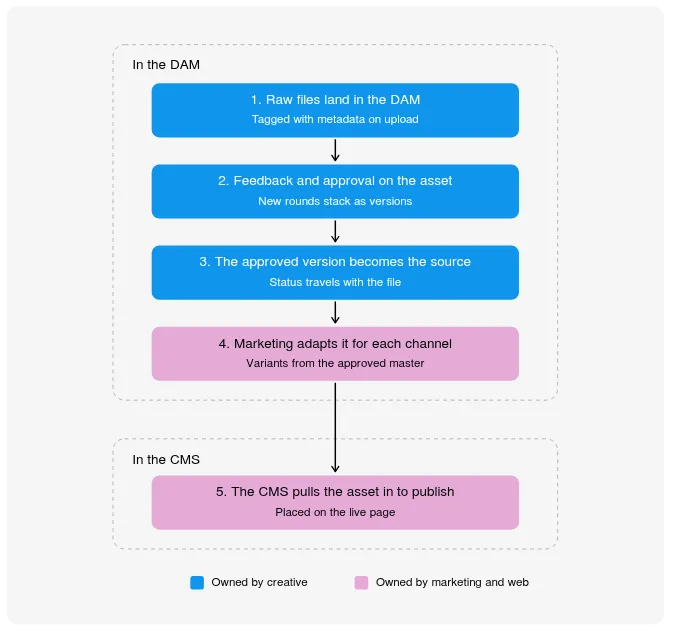
Raw files land in the DAM. Shoot selects or a fresh design round go in with tags and metadata (owned by creative).
Feedback and approval happen on the asset. Comments sit on the file and new rounds stack as versions, so nobody is reviewing an export from last Tuesday (owned by creative, with brand and marketing approvers)
The approved version becomes the one everyone pulls from. Status travels with the file, so it's clear what's ready (owned by creative).
Marketing adapts it for each channel. Crops, sizes, and variants come from the approved master instead of a downloaded copy (owned by marketing).
The CMS pulls the asset in to publish. The web editor places the approved asset on the page (owned by marketing and web teams).
What changes day to day with this approach is small but constant. The web editor stops messaging the designer for "the latest hero image" and finds it themselves, because approval status is visible on the file.
Connected systems also change how the file gets onto the page. Instead of downloading an image and re-uploading a copy to the CMS, where it immediately starts going out of date, an editor browses the DAM from inside the CMS editor and inserts the asset. The DAM then serves it through its content delivery network (CDN).
On top of all of this, integrations are one of the main reasons teams bring in a DAM in the first place. For example, Air connects to the CMS platforms many content teams already run.
With Air's integrations, WordPress editors pick assets from an Air block inside the editor, served through Air's CDN, and the picker only shows what that editor can already see in Air. In Sanity, a plugin lets editors choose a pinned URL locked to one version or a dynamic URL that always serves the latest version, and they can update names, tags, and alt text without leaving the Studio. There's also an Air integration for Contentful.
These CMS connectors are on the Enterprise plan, while CDN links are available on Business and Enterprise. We cover the connectors in more depth in our guide to DAM integrations.
What changes with a headless CMS
A headless CMS, like Sanity or Contentful, stores content in a structured backend and delivers it through an API to a website, app, or in-store screen, rather than tying it to one set of page templates.
For the headless CMS vs DAM factor, the main thing that changes is the asset handoff. The reference to an asset can either be pinned to a specific version or point to whichever version is current.
That second option means you can replace the asset in the DAM, and every place it's published updates without anyone touching the CMS, but that does also mean the version stack needs to stay clean.
If a dynamic link serves the latest version, then adding a new version is effectively a publishing decision, so teams should agree on who adds versions to assets that are already live, or use a pinned link until the new one is approved.
When a CMS media library is enough (and when it isn't)
Not every team needs a DAM. A CMS media library is genuinely enough when you run one website, one or two people upload images, you have a few dozen images and little video, and no partners or regional teams are asking you for files.
The picture starts to look different when you want to have several channels, seasonal campaigns, a growing video library, agencies and freelancers, regional variants, and more than one person who can approve work.
Are you outgrowing your CMS media library?
Each of these is something you can check this week:
The same image appears three times under three different filenames
There's no way to tell which version is current, or whether it was ever approved
Search only works if you remember the filename
An outdated product shot or an old logo is still live on a published page
Marketers ping creative for files that already exist
Some assets exist only inside a published page, with no original anywhere else
If several of these sound familiar, the asset needs a home of its own. For leadership, the case is simple: a DAM cuts the time spent searching, stops the same work from being made twice, keeps off-brand and expired assets out of circulation, and lets marketing publish without waiting on creative.
Where Air fits before an asset is ever published
Air is a DAM with AI built in. It sits between the work your creative team produces and the channels your marketing team publishes to, rather than acting as another storage bucket.
The point is that the approved library and the tools to adapt it live in the same place, so what reaches a page is current and on brand. This way, Air is built to help teams understand, organize, and scale their creative work.
Search that works without filenames
As files upload, Air applies Smart Tags and visual recognition, tagging assets by what's actually in them: objects, colors, and concepts. Conversational search means someone can type "surfer photo at sunset" and find the shot without needing to know how it was named.
Boards also work as visual smart folders, and one asset can live in several Boards without duplicating storage. This means a single approved photo can sit in the campaign Board, the website Board, and the partner Board at once. For the handoff, a web editor can find the shot themselves instead of filing a request.
Version stacks and approval status the whole team can see
With Version Stacking, new iterations stack on top of the original with full history, so the current file is the obvious one. Approvals happen on the asset itself, with feedback pinned to the file and multi-stage approvals that have owners, due dates, and notifications.
Anyone pulling an asset can see where it stands before they use it. This matters because version confusion is what puts an outdated image on a live page, and it gets solved upstream in the asset library, long before the CMS is involved.
Adapting approved work for every channel
Air Canvas is a context-powered AI design and editing surface that turns one approved design into hundreds of on-brand deliverables. Teams use it to produce the sizes, crops, and formats each channel needs, with tools like background removal, generative expand, and smart resize.
Canvas draws on Context, where teams set up brand kits with fonts, colors, logos, and usage rules, so variants stay within brand guidelines without an extra review round. Skills let you save a repeatable edit once and run it across a batch of assets, so channel resizing stops being a manual queue.
By the time an asset reaches the CMS, it's approved and already in the right format, so teams stop remaking what already exists and start building on what works.
Bringing the two systems together
Remember: the CMS publishes the page, and the DAM holds the asset. That asset needs somewhere to live before publishing, while it's live, and long after the page comes down.
For a mid-market team, the decision is fairly clear:
If you run one small site with a handful of images, your media library is fine.
If your visual volume, channels, approvals, or partners are growing, the asset needs its own home, connected to whatever publishes your content.
Air brings the approved library and the AI that adapts it together in one place, feeding the CMS your team already uses. See how Air manages the asset side of your stack.
DAM vs CMS FAQs
Is a DAM the same as a CMS?
No. A CMS publishes and manages the pages and posts on your website, while a DAM manages the asset itself, including versions, approvals, rights, and sharing, before and after it's published.
If we already have a CMS, do we need a DAM?
Not always. If you run one site with a small set of images, a CMS media library can be enough, but once you're managing multiple channels, video, approvals, or outside partners, a DAM gives those assets a single source of truth that feeds the CMS.
Can a CMS media library replace a DAM?
Only for simple needs. A media library holds the files your pages use, but it isn't built to track versions, approval status, usage rights, or sharing across channels beyond the website.
What's the difference between a headless CMS and a DAM?
A headless CMS stores structured content and delivers it to sites and apps through an API, while a DAM manages the assets that content uses. The two connect through asset references that are either pinned to one version or set to serve the latest one.
Is Air a CMS?
No. A CMS manages what's on your website, while Air manages the assets and the workflow around them, from raw footage and approvals to every stacked version, so social and partnership teams can self-serve approved work. The CMS publishes the finished page.
Does a DAM replace Google Drive or Dropbox?
For creative work, often yes. Cloud storage holds files, while a DAM adds search by what's in the file, version history, approvals, and controlled sharing, which is what creative and marketing teams need once volume grows.